Abigail Dean: A Handwritten Font That Demands a Thoughtful Approach
When you first encounter Abigail Dean, it is easy to be charmed. The flowing strokes, the natural variation in letterforms, and the sheer number of alternates and ligatures make it feel like a genuine handwritten note rather than a digital font. Many people download it, apply it quickly, and then wonder why their project does not look as polished as the preview. The difference between a beautiful font and a beautiful outcome often comes down to how you use it. Let’s walk through what makes Abigail Dean special, where people commonly go wrong, and how you can get the most out of it without frustration.
What Abigail Dean Actually Offers
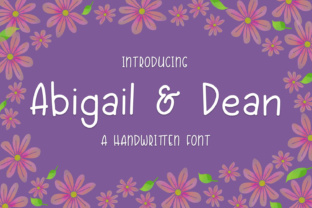
Abigail Dean is a handwritten typeface designed to mimic natural penmanship. Unlike many script fonts that feel stiff or overly uniform, this one includes a generous set of ligatures—connected letter pairs that make words flow smoothly. It also provides stylistic alternates, meaning you can swap out default characters for slightly different versions of the same letter. This gives you control over repetition and rhythm. Multilingual support means it works for text in multiple languages, and the extensive punctuation coverage ensures it handles everything from casual exclamations to formal addresses.
People are drawn to Abigail Dean for invitations, social media graphics, branding materials, packaging, and personal projects like journals or greeting cards. Its warm, approachable look works well for businesses that want to feel personal without sacrificing readability. But that readability depends entirely on how you set it up.
Common Mistakes When Using Handwritten Fonts
The most frequent mistake people make with Abigail Dean is treating it like any other font. They install it, type a sentence, and expect magic. Instead, they get disconnected letters, awkward spacing, and a look that feels less like handwriting and more like a ransom note. The problem is not the font. It is the lack of attention to the features that make it work.
Ignoring Ligatures and Alternates
Abigail Dean ships with ligatures, but many applications do not enable them by default. If you do not turn them on, letters that are meant to connect will sit apart. That defeats the entire purpose of a handwritten font. The same goes for alternates. Without swapping in different letter shapes for repeated characters, a word like “little” can end up looking the same as a typewriter, with identical letters staring back at you. Handwriting is never that uniform, and your font should not be either.
Check your software settings. In design tools like Adobe Illustrator, InDesign, or Affinity, you need to open the OpenType panel and enable ligatures and stylistic alternates. In word processors, support may be limited. If you are using Abigail Dean in Microsoft Word, test it first. Some versions handle OpenType features well; others ignore them. If your tool cannot activate ligatures, consider a different platform for your project.
Overlooking Spacing and Kerning
Handwritten fonts rely on natural spacing. But default kerning in Abigail Dean may not account for every possible letter combination. When you pair certain characters, especially after alternates are applied, gaps can appear that break the illusion of continuous handwriting. Manually adjusting kerning is not tedious—it is essential. Spend a few minutes fine-tuning the space between problem pairs like “r” and “n” or “a” and “v.” Your eye will catch the rhythm, and the text will start to breathe correctly.
Using Too Many Alternates
Having options is wonderful. But using every alternate in every word creates a chaotic look. The goal of alternates is to add subtle variety, not to showcase every letter shape available. Pick two or three alternates for a project and stick with them. For a longer document, vary alternates every few paragraphs rather than every word. This keeps the texture natural without distracting the reader.
Realistic Examples of Better Approaches
Imagine you are designing a wedding invitation. The bride’s name appears three times: once in the header, once in the body text, and once in the closing. If you use the same default ‘e’ each time, the repeated shape stands out. With alternates enabled, you can select a different ‘e’ for the header, a different one for the body, and a third for the closing. Now each instance feels handcrafted without being identical.
Another example: a small business owner creating a thank-you card for clients. Using ligatures ensures that “thank” connects smoothly. Disabling them leaves a gap between the ‘h’ and ‘a’ that looks like a typing error. The client may not know why it looks off, but they will feel it. Taking two minutes to enable ligatures changes the entire impression.
What to Check Before You Buy or Download
Before you commit to using Abigail Dean, confirm that your primary design software supports OpenType features. If you work mostly in Canva or similar browser-based tools, check their current ligature and alternate support carefully. These platforms often simplify font rendering, and you may lose access to the very features that make Abigail Dean valuable.
Also, consider the nature of your project. Handwritten fonts work beautifully for short, expressive text—titles, quotes, headings, and short paragraphs. For long body copy, especially at small sizes, readability drops. Readers may struggle with cursive connections at 10 or 11 points. Reserve Abigail Dean for display purposes, and pair it with a clean sans-serif or serif for body text. This gives you the personality you want without compromising legibility.
Practical Advice for Better Results
Start with a test word. Type a few phrases that matter to your project and print them at the intended size. Look for awkward connections, inconsistent spacing, or letters that feel out of place. Make adjustments before you build the entire layout.
Use layers if you are working in a design app. Set your Abigail Dean text on one layer and manually adjust individual letters on another. This gives you full control without affecting the underlying structure.
Save a preset. Once you have your ligatures, alternates, and spacing dialed in, save that configuration as a character style or graphic style. That way, you can apply it consistently across future projects without starting over.
If you purchase Abigail Dean, read the license carefully. Some foundries limit usage in commercial merchandise, digital products, or logo files. Knowing the terms upfront saves headaches later. If you download a free version, confirm that it includes the full set of alternates and ligatures. Free trials sometimes strip out these features to upsell the full version.
Helping Beginners Avoid Frustration
If you are new to using handwritten fonts, start small. Pick one short project—a single greeting card or a social media graphic—and learn the mechanics there. Experiment with alternates. See how ligatures change the flow. Make mistakes in a low-stakes environment so that when you tackle a larger project, you already know what works.
Do not assume that a font will behave the same way in every application. What looks perfect in your font manager may break in a browser or a mobile editor. Always preview your text in the environment where it will be seen. That extra step eliminates surprises.
Why Thoughtful Use Pays Off
When you take the time to understand Abigail Dean’s features, the results speak for themselves. A well-set invitation, logo, or quote feels intentional. It does not look like you just typed and walked away. It looks like you cared about every letter, every connection, and every space. That level of attention builds trust with your audience, whether they are clients, followers, or readers.
Handwritten fonts carry an emotional weight. They say someone took the time to write it by hand. If the execution is sloppy, that emotion turns into confusion. But when you control ligatures, alternates, and spacing deliberately, the font becomes a genuine asset. It communicates warmth without sacrificing professionalism.
Abigail Dean gives you the tools to achieve that balance. The rest depends on how you use them. Start with small tests, enable the features, tweak the spacing, and respect the limits of the font. Do that, and you will avoid the common pitfalls that turn an expressive typeface into a disappointment.